---
title: "IIS Network Load Balancing & Failover: Install the SafeKit iis_farm.safe Module"
description: "SafeKit Video: Network Load Balancing and Virtual IP Management (5:03) In this video, learn how to implement a virtual IP address to provide a single entry point for a 2-node cluster. SafeKit simplifies network load balancing by automatically managing the virtual IP, ensuring that client traffic is distributed across nodes and redirected instantly during a […]"
canonical: "https://safekit.eviden.com/quick-install/safekit-quick-installation-guide-with-iis-with-network-load-balancing-and-failover/"
topics: "High Availability Quick Installation Guide for IIS, SafeKit High Availability Limitations, Overview of the SafeKit / IIS solution, Installation of the SafeKit / IIS solution on Windows (iis_farm.safe), Step by step configuration of the SafeKit / IIS solution, Demonstration of the SafeKit farm solution, 🔍 SafeKit High Availability Navigation Hub"
category: "quick-install"
lang: "en"
---

<h1 id="iis-network-load-balancing--failover-install-the-safekit-iis_farmsafe-module">IIS Network Load Balancing &amp; Failover: Install the SafeKit iis_farm.safe Module</h1>
<h2 id="quick-guide">High Availability Quick Installation Guide for IIS</h2>
<p>This guide explains how to set up a <strong>iis_farm cluster</strong> for IIS using SafeKit, ensuring network load balancing and automatic failover.</p>
<p>For help, you can use <a href="/resources/safekit-support/">SafeKit AI 🤖</a>.</p>
<h3 id="1-overview">1. Overview</h3>
<ul>
<li><strong>Architecture:</strong> Implements a scalable, multi-node load-balanced iis_farm with a virtual IP address.</li>
<li><strong>High Availability:</strong> Features automatic health monitoring and seamless failover to <strong>ensure service continuity</strong>.</li>
</ul>
<h3 id="2-installation">2. Installation</h3>
<ul>
<li><strong>Software:</strong> Install the SafeKit engine on all servers.</li>
<li><strong>Module:</strong> Download the pre-configured <code>iis_farm.safe</code> application module.</li>
</ul>
<h3 id="3-configuration">3. Configuration</h3>
<ul>
<li><strong>Web Console:</strong> Configure the IIS iis_farm cluster.</li>
<li><strong>Monitoring:</strong> Start monitoring and protecting the IIS application.</li>
</ul>
<h2 id="safekit-ha-limitations">SafeKit High Availability Limitations</h2>
<h3 id="why-a-replication-of-a-few-tera-bytes">Why a replication of a few Tera-bytes?</h3>
<p>Resynchronization time after a failure (<a href="/architectures/file-replication-byte-level-with-failover-mirror-cluster/#safekit-mirror-cluster">step 3</a>)</p>
<ul>
<li>1 Gb/s network ≈ 3 Hours for 1 Tera-bytes.</li>
<li>10 Gb/s network ≈ 1 Hour for 1 Tera-bytes or less depending on disk write performances.</li>
</ul>
<h4 id="alternative">Alternative</h4>
<ul>
<li>For a large volume of data, use <a href="/best-practises/san-vs-nas-shared-storage-for-a-failover-cluster/">external shared storage</a>.</li>
<li>More expensive, more complex.</li>
</ul>
<h3 id="why-a-replication-lt-1000000-files">Why a replication &lt; 1,000,000 files?</h3>
<ul>
<li>Resynchronization time performance after a failure (<a href="/architectures/file-replication-byte-level-with-failover-mirror-cluster/#safekit-mirror-cluster">step 3</a>).</li>
<li>Time to check each file between both nodes.</li>
</ul>
<h4 id="alternative-1">Alternative</h4>
<ul>
<li>Put the many files to replicate in a virtual hard disk / virtual machine.</li>
<li>Only the files representing the virtual hard disk / virtual machine will be replicated and resynchronized in this case.</li>
</ul>
<h3 id="why-a-failover--32-replicated-vms">Why a failover ≤ 32 replicated VMs?</h3>
<ul>
<li>Each VM runs in an independent mirror module.</li>
<li>Maximum of 32 mirror modules running on the same cluster.</li>
</ul>
<h4 id="alternative-2">Alternative</h4>
<ul>
<li>Use an external shared storage and another VM clustering solution.</li>
<li>More expensive, more complex.</li>
</ul>
<h3 id="why-a-lanvlan-network-between-remote-sites">Why a LAN/VLAN network between remote sites?</h3>
<ul>
<li>Automatic failover of the <a href="/best-practises/how-a-virtual-ip-address-works/">virtual IP address</a> with 2 nodes in the same subnet.</li>
<li>Good bandwidth for resynchronization (<a href="/architectures/file-replication-byte-level-with-failover-mirror-cluster/#safekit-mirror-cluster">step 3</a>) and good latency for <a href="/best-practises/synchronous-replication-vs-asynchronous-replication/">synchronous replication</a> (typically a round-trip of less than 2ms).</li>
</ul>
<h4 id="alternative-3">Alternative</h4>
<ul>
<li>Use a <a href="/best-practises/how-a-virtual-ip-address-works/">load balancer for the virtual IP address</a> if the 2 nodes are in 2 subnets (supported by SafeKit, especially in the cloud).</li>
<li>Use backup solutions with asynchronous replication for high latency network.</li>
</ul>
<h2 id="overview-of-the-safekit--iis-solution">Overview of the SafeKit / IIS solution</h2>
<p>The solution is described here: <strong><a href="/solutions/iis-load-balancing-failover/">SafeKit: All-in-One IIS Load Balancing&amp; High Availability Software</a></strong>.</p>
<h2 id="installation-of-the-safekit--iis-solution-on-windows-iis_farmsafe">Installation of the SafeKit / IIS solution on Windows (iis_farm.safe)</h2>
<h3 id="prerequisites">Prerequisites</h3>
<ul>
<li>You need IIS installed on 2 nodes or more (virtual machines or physical servers).</li>
</ul>
<h3 id="package-installation-on-windows">Package installation on Windows</h3>
<ul>
<li>Download and install the free version of SafeKit on 2 Windows nodes.<br>
Note: the free version includes all SafeKit features. At the end of the trial, you can activate permanent license keys without uninstalling the package.</li>
<li>Upon completing the package installation, select <strong>Set console credentials and firewall rules now</strong> and configure a password for the <strong>admin</strong> user of the SafeKit console.<br>
<strong>Set the same password on all nodes.</strong></li>
<li>Exclude from antivirus scans <strong>C:/safekit/</strong> (the default installation directory) and <strong>all replicated folders</strong> that you are going to define.<br>
Antiviruses may face detection challenges with SafeKit due to its close integration with the OS, virtual IP mechanisms, real-time replication and restart of critical services.</li>
</ul>
<p><a href="/resources/safekit-free-trial/"> Download SafeKit (Windows) &gt; </a></p>
<h3 id="module-installation-on-windows">Module installation on Windows</h3>
<ul>
<li>Download the iis_farm.safe module. The module is free. It contains the files userconfig.xml and the restart scripts.</li>
<li>Put <strong>iis_farm.safe</strong> under <strong>C:/safekit/Application_Modules/generic</strong>.</li>
</ul>
<p><a class="btn-download" href="/wp-content/uploads/downloads_safekit/version-82/modules_windows/firebird.safe" download="iis_farm.safe">⬇️ Download iis_farm.safe (Windows) &gt;</a></p>
<h2 id="step-by-step-configuration-of-the-safekit--iis-solution">Step by step configuration of the SafeKit / IIS solution</h2>
<h3 id="prerequisites-1">Prerequisites</h3>
<ul>
<li>IIS application installed on 2 nodes (or more).</li>
<li>Virtual IP load balancing requires nodes on the same LAN or extended LAN (L2) — routed L3 networks not supported (except with <a href="/resources/safekit-user-guide-82/#Cloud">cloud load balancers</a>).</li>
</ul>
<h3 id="1-launch-the-safekit-console">1. Launch the SafeKit console</h3>
<ul>
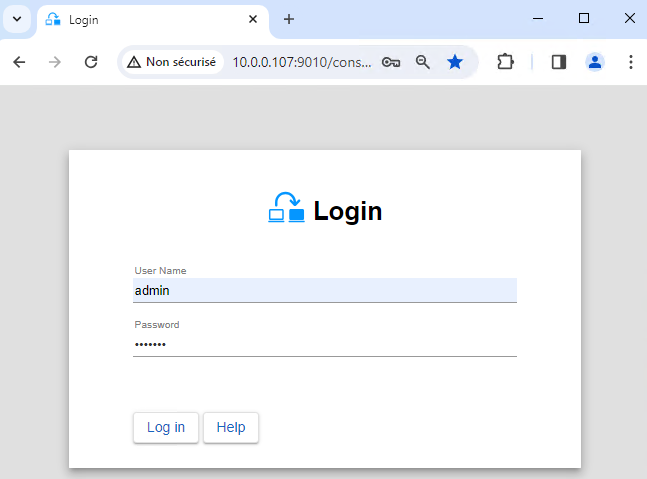
<li>Launch the web console in a browser on one cluster node by connecting to <code>http://localhost:9010</code>.</li>
<li>Enter <code>admin</code> as user name and the password defined during installation.</li>
</ul>
<p>You can also run the console in a browser on a workstation external to the cluster.</p>
<div class="callout callout-warning"><img src="/wp-content/uploads/2022/07/warning-small.png" alt="Warning"><span>The configuration of SafeKit is done on both nodes from a single browser.</span></div>
<div class="callout"><img src="/wp-content/uploads/2022/07/note.png" alt="Note"><span>To secure the web console, see <a href="/resources/safekit-user-guide-82/#https">11. Securing the SafeKit web service</a> in the User's Guide.</span></div>
<img src="/wp-content/uploads/2024/03/01-login-large.png" alt="Start the SafeKit web console to configure the IIS cluster">
<h3 id="2-configure-node-addresses">2. Configure node addresses</h3>
<ul>
<li>Enter the node IP addresses, press the <code>Tab key</code> to check connectivity and fill node names. If either node1 or node2 has a red color, check connectivity of the browser to both nodes and check firewall on both nodes for <a href="/resources/safekit-user-guide-82/#Troubleshooting">troubleshooting</a>.</li>
<li>Then, click on <code>Save and apply</code> to save the configuration.</li>
<li>Check the <code>Success</code> ✅ message on both nodes.</li>
<li>If the configuration <code>Failure</code> ❌ occurs on one node, open the ▼ accordion for that node and review the messages. Note that you can use the SafeKit AI 🤖 for assistance.</li>
</ul>
<div class="callout"><img src="/wp-content/uploads/2022/07/note.png" alt="Note"><span>If you want, you can add a new `LAN and nodes` ( first ➕) to create a second heartbeat and a dedicated replication network.</span></div>
<div class="callout"><img src="/wp-content/uploads/2022/07/note.png" alt="Note"><span>If you click on `Advanced configuration`, the `cluster.xml` file is displayed. This file is automatically populated by the console and deployed on the nodes.</span></div>
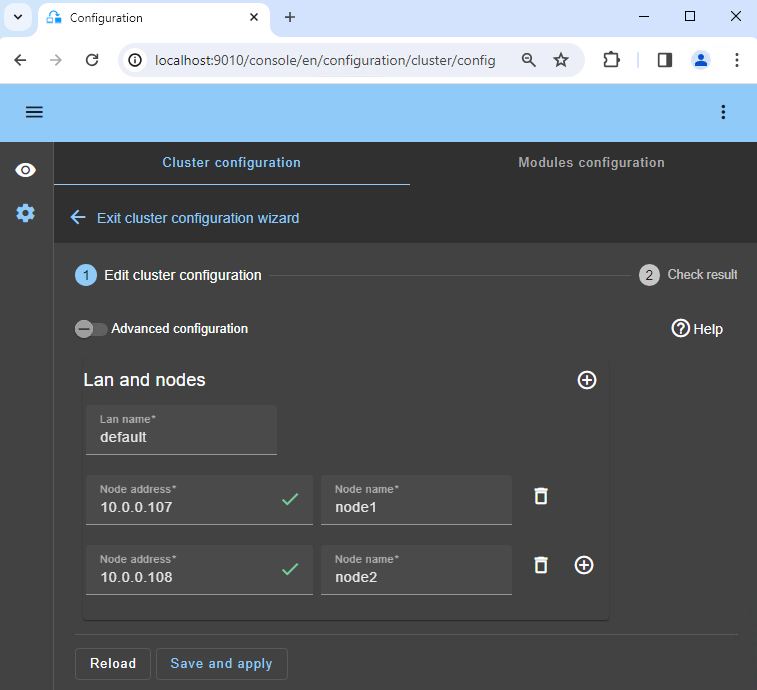
<img src="/wp-content/uploads/2024/03/02-cluster-edit.png" alt="Enter the nodes of the IIS cluster">
<h3 id="3-select-a-module">3. Select a module</h3>
<ul>
<li>In <code>New module</code>, click on the <code>iis_farm.safe</code> module.</li>
</ul>
<div class="callout"><img src="/wp-content/uploads/2022/07/note.png" alt="Note"><span>In the blue banner at the top, 🛜 `node1` represents the console connection node. This node relays requests to `node2` when required.</span></div>
<div class="callout"><img src="/wp-content/uploads/2022/07/note.png" alt="Note"><span>The console looks for `xxx.safe` in the `Application_Modules/generic/` directory on the connection node (`node1`) if you placed a module there during installation.</span></div>
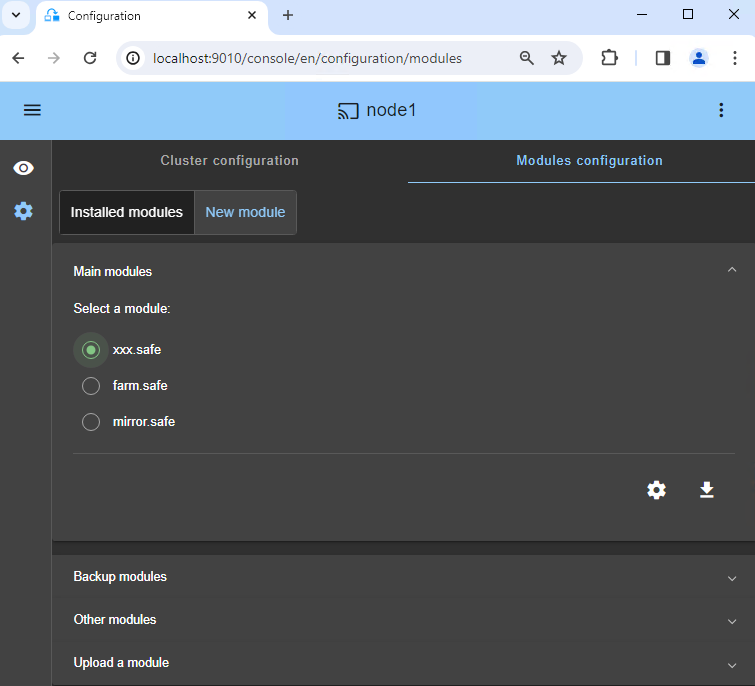
<img src="/wp-content/uploads/2024/03/04-module-new.png" alt="Choose the module for IIS">
<h3 id="4-configure-the-module">4. Configure the module</h3>
<ul>
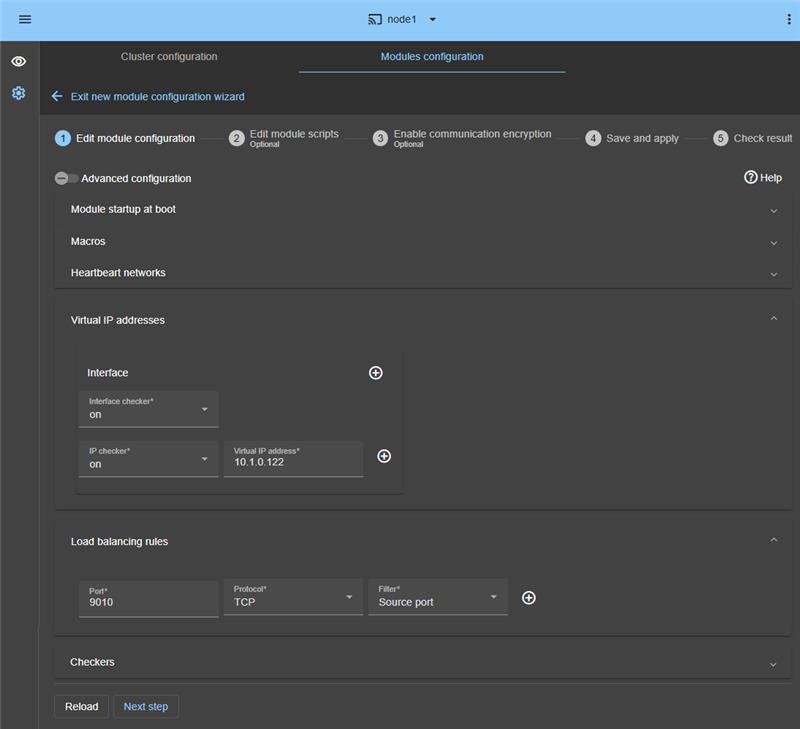
<li>In <code>Module startup at boot</code>, choose an automatic start of the module at boot without delay.</li>
<li>In <code>Macros</code> / <code>SERVICES</code>, enter the service names of your application, in the startup order, separated by commas.</li>
<li>In <code>Heartbeat networks</code>, you should have a single heartbeat network except if you have added a LAN at step 2.</li>
<li>In <code>Virtual IP addresses</code>, enter a virtual IP address. A virtual IP address is a standard IP address in the same IP network (same subnet) as the IP addresses of both nodes.<br>
Application clients must be configured with the virtual IP address (or the DNS name associated with the virtual IP address).</li>
<li>In <code>Load balancing rules</code>, set the service port to load balance (ex.: TCP 9010 in the example).</li>
<li>In <code>Load balancing rules</code>, set the load balancing rule, <code>Source address</code> or <code>Source port</code>:
<ul>
<li>with the source IP address of the client, the same client will be connected to the same node in the iis_farm on multiple TCP sessions and retrieve its context on the node.</li>
<li>with the source TCP port of the client, the same client will be connected to different nodes in the iis_farm on multiple TCP sessions (without retrieving a context).</li>
</ul>
</li>
<li>In <code>Checkers</code>, you will be able to configure checkers if needed, such as process monitoring, custom checkers, TCP, ping, or split-brain checkers.<br>
For example, if a process name is displayed in <code>Monitored processes/services</code>, it will be monitored with a restart action in case of failure. Configuring a wrong process name will cause the module to stop right after its start.</li>
</ul>
<div class="callout"><img src="/wp-content/uploads/2022/07/note.png" alt="Note"><span>If you click on `Advanced configuration`, the `userconfig.xml` file is displayed. This file is automatically populated by the console and deployed on the nodes with the restart scripts.</span></div>
<div class="callout"><img src="/wp-content/uploads/2022/07/note.png" alt="Note"><span>In a cloud deployment, you do not need to configure a virtual IP address and load balancing rules in SafeKit. The virtual IP and load balancing rules are managed at the <a href="/resources/safekit-user-guide-82/#Cloud">cloud load balancer level</a>.</span></div>
<div class="callout"><img src="/wp-content/uploads/2022/07/note.png" alt="Note"><span>When you apply the SafeKit configuration, the `startup type` of services is automatically set to `Manual` in Windows services. This ensures that services do not start automatically when the system boots, but are instead started only when the module itself is started (the same applies on IIS).</span></div>
<img src="/wp-content/uploads/2025/05/36-module-farm-config-edit-1.jpg" alt="Enter the IIS iis_farm module settings">
<h3 id="5-edit-scripts-optional">5. Edit scripts (optional)</h3>
<ul>
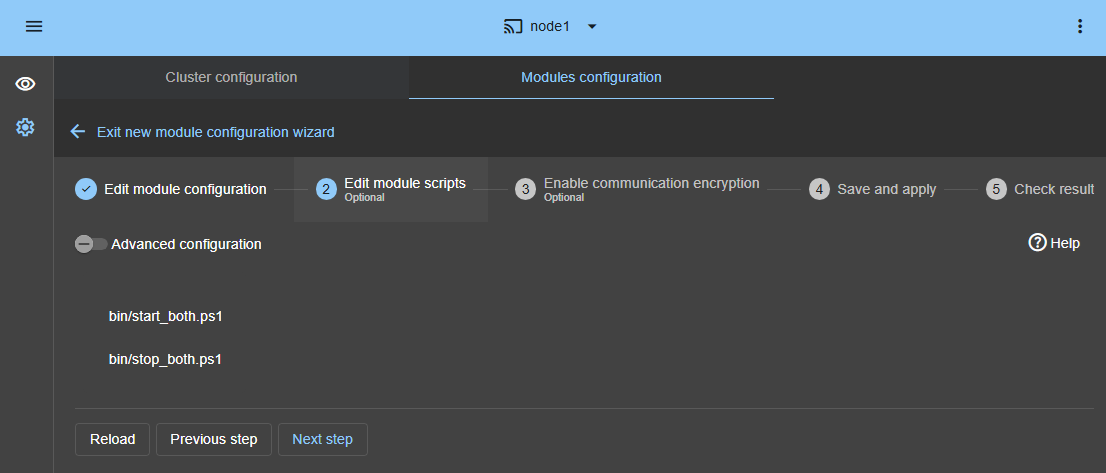
<li>This step is optional and can be skipped in most cases, as the restart scripts are already pre-configured to restart services defined in the previous step.</li>
<li>So, click directly on <code>Next step</code>.</li>
<li><code>start_both.ps1</code> starts all services in the order specified in the <code>SERVICES</code> list, while <code>stop_both.ps1</code> stops all services in the reverse order.</li>
<li>Additionally, <code>start_both.ps1</code> checks the startup of each service and stops the module if any service fails to start correctly.</li>
</ul>
<img src="/wp-content/uploads/2025/05/35-module-iis-edit-script-1.png" alt="Enter the IIS module settings">
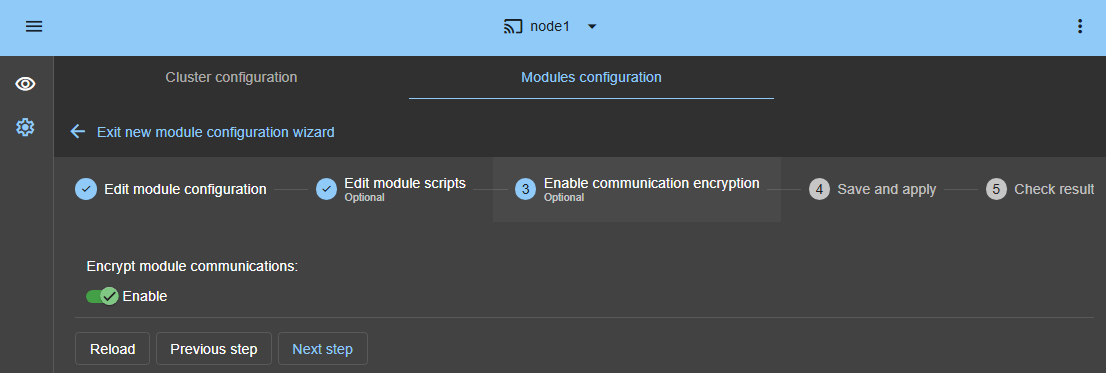
<h3 id="6-communication-encryption-optional">6. Communication encryption (optional)</h3>
<ul>
<li>Keep encryption of communication between nodes.</li>
</ul>
<img src="/wp-content/uploads/2025/05/07-module-encryption-1.png" alt="Communication encryption of the IIS module">
<h3 id="7-save-and-apply">7. Save and apply</h3>
<ul>
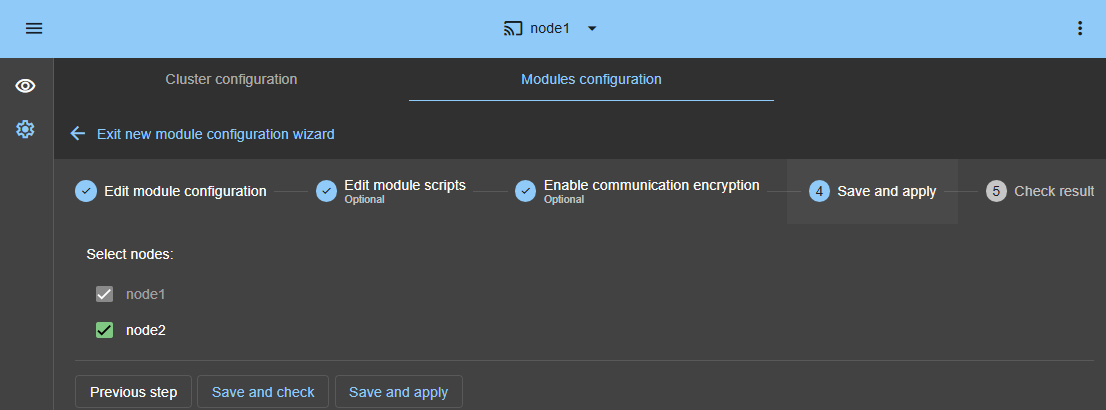
<li><code>Save and apply</code> the configuration and scripts on both nodes.</li>
</ul>
<img src="/wp-content/uploads/2025/05/08-module-save-1.png" alt="Save and apply the IIS module configuration">
<h3 id="8-verify-successful-configuration">8. Verify successful configuration</h3>
<ul>
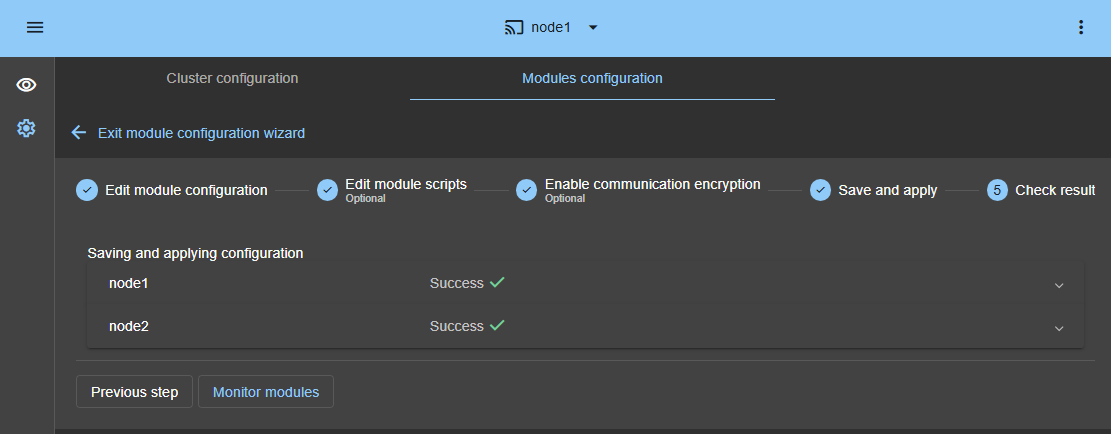
<li>Check the <code>Success</code> ✅ message on both nodes and click on <code>Monitor modules</code>.</li>
<li>If the configuration <code>Failure</code> ❌ occurs on one node, open the ▼ accordion for that node and review the messages. Note that you can use the SafeKit AI 🤖 for assistance.</li>
</ul>
<img src="/wp-content/uploads/2025/05/09-module-save-check-1.png" alt="Check the IIS module configuration success">
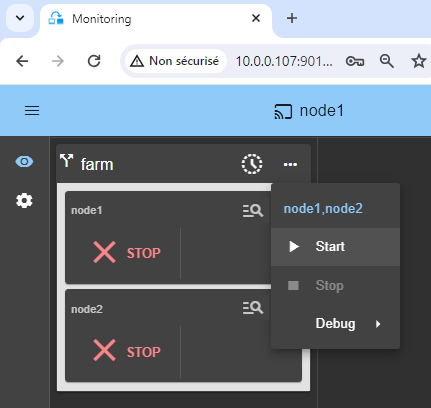
<h3 id="9-start-the-iis_farm-cluster-on-node-1-and-node-2">9. Start the iis_farm cluster on node 1 and node 2</h3>
<ul>
<li>⋯ <code>Start</code> the iis_farm cluster as shown in the image.</li>
</ul>
<img src="/wp-content/uploads/2024/03/11-monitoring-farm-stop-stop-start.png" alt="Start the IIS cluster on both nodes">
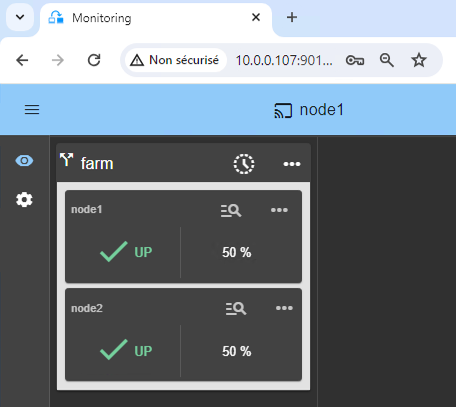
<h3 id="10-wait-for-the-transition-to-up-green--up-green">10. Wait for the transition to UP (green) / UP (green)</h3>
<p>Node 1 and node 2 should reach the UP (green) state, which means that the <code>start_both</code> script has been executed on node 1 and node 2.</p>
<div class="callout callout-warning"><img src="/wp-content/uploads/2022/07/warning-small.png" alt="Warning"><span>If UP (green) is not reached or if the application is not started, analyze why with the <a href="/wp-content/uploads/2024/03/37-module-log-farm-script.png">module log 🖼️</a> of node 1 or node 2.</span></div>
<ul>
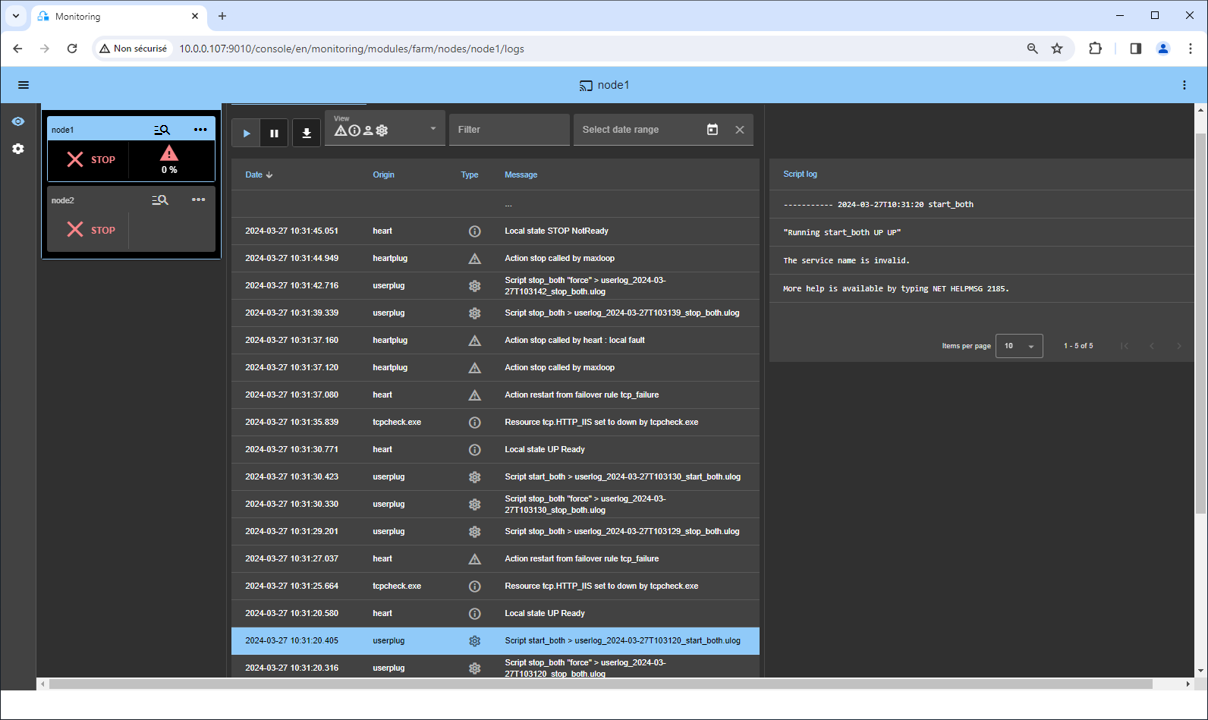
<li>Click the 🔍 <strong>log</strong> icon of <code>node1</code> or <code>node2</code> to open the module log and look for error messages such as a checker detecting an error and stopping the module.</li>
<li>Click on <code>start_both</code> in the log: output messages of the script are displayed on the right and errors can be detected such as a service incorrectly started.</li>
<li>Use the SafeKit AI 🤖 for assistance with log messages.</li>
</ul>
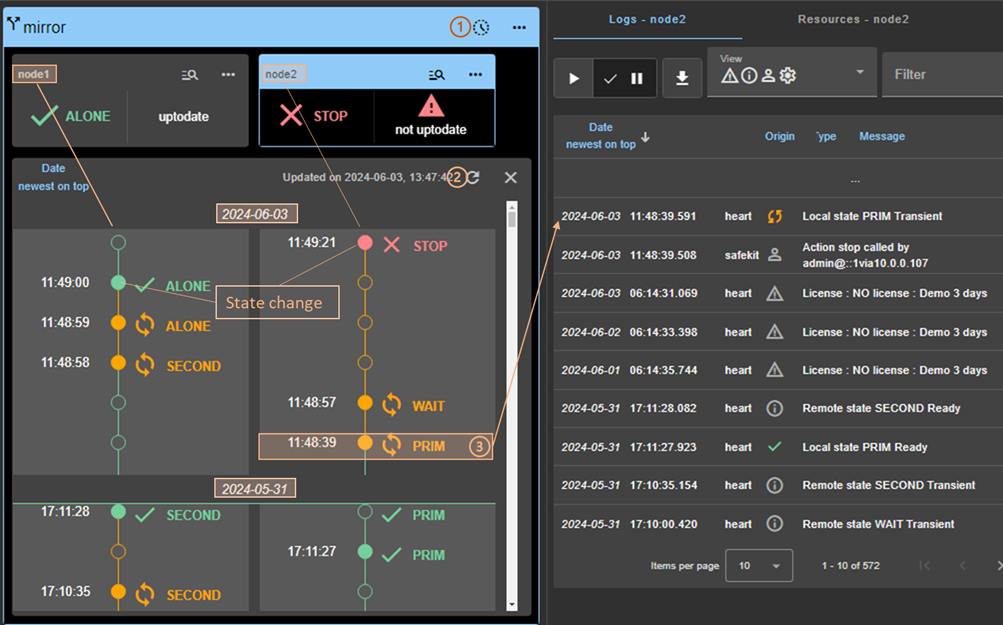
<div class="callout"><img src="/wp-content/uploads/2022/07/note.png" alt="Note"><span>Note that you have a 🕒 **<a href="/wp-content/uploads/2026/05/safekit-console-timeline.png">timeline 🖼️</a>** that can be helpful to understand what happens in the cluster.</span></div>
<img src="/wp-content/uploads/2024/03/15-monitoring-up-up.png" alt="The IIS cluster is started">
<h3 id="11-testing">11. Testing</h3>
<p>SafeKit brings a built-in test in the product:</p>
<ul>
<li>
<pre><code>* Configure a rule for TCP port 9010 with a load balancing on source TCP port.
</code></pre>
<ul>
<li>Connect an external workstation outside the iis_farm nodes.</li>
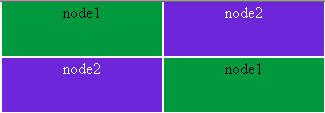
<li>Start a browser on http://virtual-ip:9010/safekit/mosaic.html.</li>
</ul>
</li>
</ul>
<p>You should see a mosaic of colors depending on nodes answering to HTTP requests.</p>
<ul>
<li>Stop one UP (green) node by scrolling down its contextual menu and clicking Stop.</li>
<li>Check that there is no more TCP connections on the stopped node and on the virtual IP address.</li>
</ul>
<div class="callout"><img src="/wp-content/uploads/2022/07/note.png" alt="Note"><span>Find more details, along with videos, in the <a href="/resources/safekit-on-line-training/">SafeKit Online Training</a>.</span></div>
<img src="/wp-content/uploads/2024/03/appli-19.png" alt="Test the virtual IP address of IIS with the mosaic">
<h3 id="12-support">12. Support</h3>
<ul>
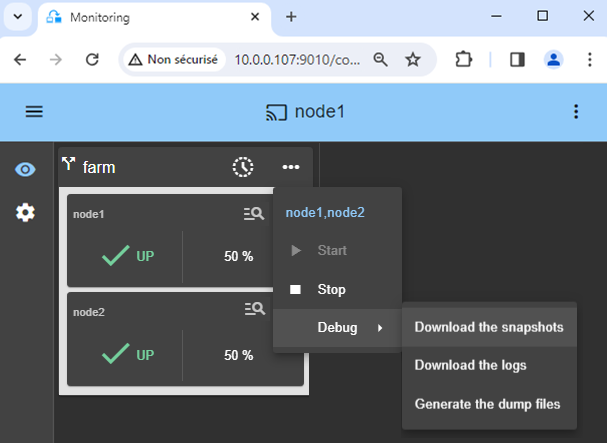
<li>For getting support, take 2 SafeKit <code>Snapshots</code> (2 .zip files), one for each node.</li>
</ul>
<div class="callout"><img src="/wp-content/uploads/2022/07/note.png" alt="Note"><span><a href="/resources/safekit-support/">More information on the support here</a>.</span></div>
<img src="/wp-content/uploads/2024/03/32-snapshots-farm.png" alt="Take the IIS snaphots for support">
<h2 id="demonstration-of-the-safekit-farm-solution">Demonstration of the SafeKit farm solution</h2>
<h3 id="demo-farm">SafeKit Video: Network Load Balancing and Virtual IP Management (5:03)</h3>
<p>In this video, learn how to implement a <strong>virtual IP address</strong> to provide a single entry point for a 2-node cluster. SafeKit simplifies <strong>network load balancing</strong> by automatically managing the virtual IP, ensuring that client traffic is distributed across nodes and redirected instantly during a failover. Although this demonstration uses Apache on Windows, the solution works identically with other applications.</p>
<h3 id="chapters">Chapters</h3>
<ol>
<li><a href="https://www.youtube.com/watch?v=1Ww2-cXHNx4&amp;amp;t=0s" target="_blank" rel="noopener">Architecture: Preparing 2 nodes for a shared Virtual IP</a> (0:13)</li>
<li><a href="https://www.youtube.com/watch?v=1Ww2-cXHNx4&amp;amp;t=13s" target="_blank" rel="noopener">Configuration: Setting up the farm.safe module and Virtual IP address</a> (2:20)</li>
<li><a href="https://www.youtube.com/watch?v=1Ww2-cXHNx4&amp;amp;t=153s" target="_blank" rel="noopener">Validation: Failover testing and Virtual IP redirection on server crash</a> (2:30)</li>
</ol>
<h3 id="step-by-step-implementation">Step-by-Step Implementation</h3>
<ul>
<li><a href="/quick-install/safekit-quick-installation-guide-for-a-new-windows-application-with-network-load-balancing-and-failover/">Read the guide on setting up a farm cluster on Windows</a></li>
<li><a href="/quick-install/safekit-quick-installation-guide-for-a-new-linux-application-with-network-load-balancing-and-failover/">Read the guide on setting up a farm cluster on Linux</a></li>
</ul>
<p>&amp;amp;amp;amp;amp;amp;lt;br /&amp;amp;amp;amp;amp;amp;gt;</p>
<h2 id="hub">🔍 SafeKit High Availability Navigation Hub</h2>
<p><strong>Explore SafeKit: Features, technical videos, documentation, and free trial</strong></p>
<table>
<thead>
<tr>
<th>Resource Type</th>
<th>Description</th>
<th>Direct Link</th>
</tr>
</thead>
<tbody>
<tr>
<td><strong>Key Features</strong></td>
<td>Why Choose SafeKit for Simple and Cost-Effective High Availability?</td>
<td><a href="/#why-choose-safekit-for-ha" title="Discover SafeKit features for simple and cost-effective high availability">See Why Choose SafeKit for High Availability</a></td>
</tr>
<tr>
<td><strong>Use Cases</strong></td>
<td>Explore How SafeKit Ensures the High Availability of Critical Infrastructure</td>
<td><a href="/#safekit-use-cases" title="Explore SafeKit high availability use cases">See All Use Cases (OEM Software, Edge Servers, SCADA, and more)</a></td>
</tr>
<tr>
<td><strong>Deployment Model</strong></td>
<td>All-in-One SANless HA: Shared-Nothing Software Clustering</td>
<td><a href="/#all-in-one-sanless-ha" title="Learn about all-in-one SANless high availability with shared-nothing software clustering">See SafeKit All-in-One SANless HA</a></td>
</tr>
<tr>
<td><strong>HA Strategies</strong></td>
<td>SafeKit: Infrastructure (VM) vs. Application-Level High Availability</td>
<td><a href="/#safekit-ha-redundancy-choices" title="Compare VM-level redundancy with SafeKit application-level high availability strategies">See SafeKit HA &amp; Redundancy: VM vs. Application Level</a></td>
</tr>
<tr>
<td><strong>Technical Specifications</strong></td>
<td>Technical Limitations for SafeKit Clustering</td>
<td><a href="/#safekit-ha-limitations" title="Technical requirements and limitations for SafeKit application clustering">See SafeKit High Availability Limitations</a></td>
</tr>
<tr>
<td><strong>Proof of Concept</strong></td>
<td>SafeKit: High Availability Configuration &amp; Failover Demos</td>
<td><a href="/#safekit-failover-tutorials" title="Step-by-step videos on SafeKit high availability, from installation to automated failover">See SafeKit Failover Tutorials</a></td>
</tr>
<tr>
<td><strong>Architecture</strong></td>
<td>How the SafeKit Mirror Cluster works (Real-Time Replication &amp; Failover)</td>
<td><a href="/#safekit-mirror-cluster" title="See technical architecture and failover mechanism of SafeKit Mirror Cluster">See SafeKit Mirror Cluster: Real-Time Replication &amp; Failover</a></td>
</tr>
<tr>
<td><strong>Architecture</strong></td>
<td>How the SafeKit Farm Cluster works (Network Load Balancing &amp; Failover)</td>
<td><a href="/#safekit-farm-cluster" title="Technical overview of SafeKit Farm Cluster architecture with network load balancing">See SafeKit Farm Cluster: Network Load Balancing &amp; Failover</a></td>
</tr>
<tr>
<td><strong>Competitive Advantages</strong></td>
<td>Comparison: SafeKit vs. Traditional High Availability (HA) Clusters</td>
<td><a href="/#safekit-ha-comparison" title="Detailed comparison of SafeKit software vs traditional hardware-based HA clusters">See SafeKit vs. Traditional HA Cluster Comparison</a></td>
</tr>
<tr>
<td><strong>Technical Resources</strong></td>
<td>SafeKit High Availability: Documentation, Downloads &amp; Trial</td>
<td><a href="/#safekit-ha-technical-resources" title="Access SafeKit free trial, technical documentation, and high availability white papers">See SafeKit HA Free Trial &amp; Technical Documentation</a></td>
</tr>
<tr>
<td><strong>Pre-configured Solutions</strong></td>
<td>SafeKit Application Module Library: Ready-to-Use HA Solutions</td>
<td><a href="/#safekit-ha-application-modules" title="Browse the library of pre-configured SafeKit modules for automated application failover">See SafeKit High Availability Application Modules</a></td>
</tr>
</tbody>
</table>
<div class="button-row">
  <a class="btn-action" href="https://safekit.eviden.com/contact-us-for-safekit/">🧑 Contact us</a>
  <a class="btn-action" href="/resources/safekit-free-trial/">🎁 SafeKit free trial</a>
  <a class="btn-action" href="https://training.my.evidian.com/mod/page/view.php?id=712">🏅 Free certification</a>
  <a class="btn-action" href="https://safekit.eviden.com/get-a-quote-safekit/">💰 Perpetual license cost</a>
</div>